Gray Zone Warfare Invite Friends: Squad Setup Guide
Gray Zone Warfare invite friends guide: learn squad setup, match factions and modes in Update 0.5, join deployed teammates, and troubleshoot invite issues.
Jump to
How to Invite Friends in Gray Zone Warfare
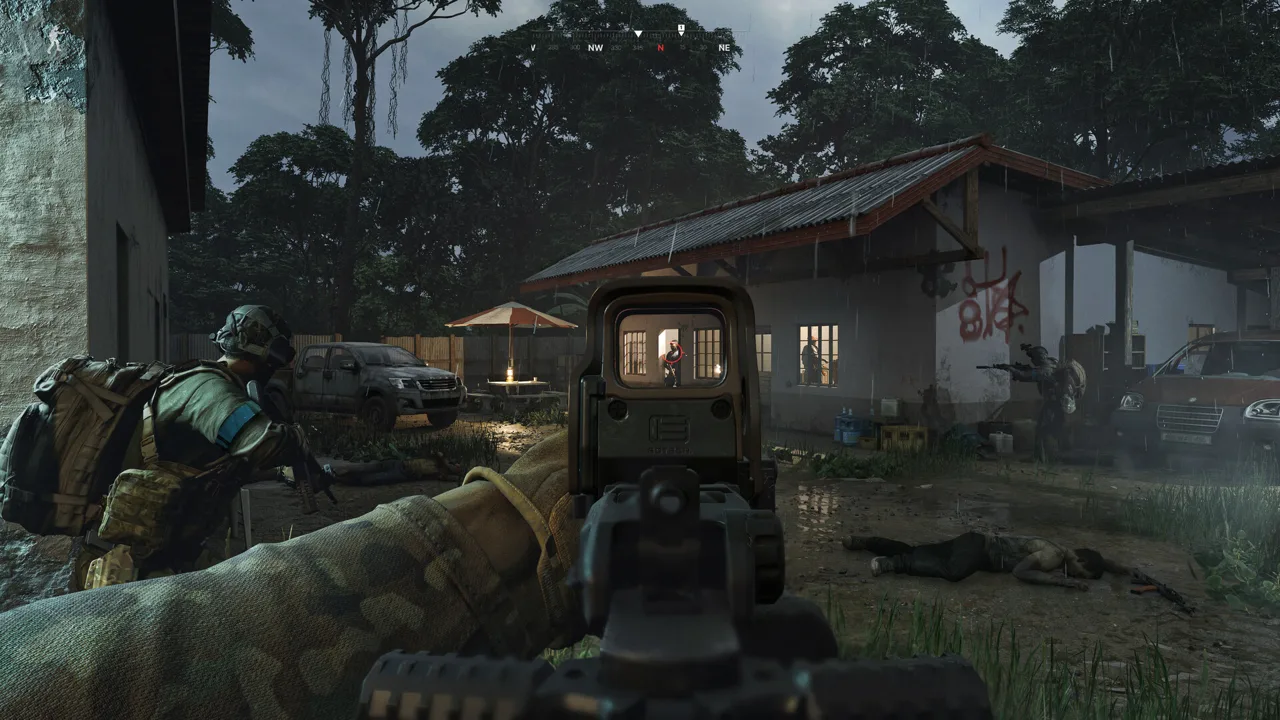
The Gray Zone Warfare invite friends process starts in the main menu: add your friend in-game, create a squad, and send a squad invitation. Get everyone organized before deployment so you can enter together instead of sorting out separate servers. Check your selected characters first, because matching factions and game modes matters for playing together.
This Gray Zone Warfare invite friends guide covers the squad menu, joining a deployed teammate, and the character options introduced with Update 0.5: Rogue Ops. Those new character options are especially useful if your regular group picked different factions.
Add Your Friend, Then Send the Squad Invite
Adding someone as a friend and inviting them into your squad are separate actions. Complete both before starting deployment.
The original squad interface uses this menu sequence:
- Open the friends menu. From the main menu, select the friends icon near the upper-right corner. The icon shows two people.
- Search for your friend's in-game nickname. Use the search field in the Friends tab and select the correct player.
- Send a friend request. Click the plus icon beside their name.
- Have your friend accept. They can find the invitation under the Requests tab in the same social menu.
- Select Create Squad. Open the squad controls in the upper-right area of the main menu.
- Choose Add Member. Find your friend, open the arrow menu beside their nickname, and select Invite to Squad.
- Wait for acceptance. Check that your friend has joined the squad before selecting Begin Deployment.
| Menu control | What to do |
|---|---|
| Friends search | Enter your friend's in-game nickname |
| Plus icon | Send the friend request |
| Requests tab | Accept the incoming friend request |
| Create Squad → Add Member | Find the player you want to invite |
| Invite to Squad | Send the separate squad invitation |
| Begin Deployment | Start deployment after everyone joins |
If your friend has accepted the friend request but still isn't in your squad, return to the squad controls and send the second invitation. Being connected through the friends list doesn't complete squad formation.
Official page: Gray Zone Warfare (grayzonewarfare.com)
Match Your Faction and Mode in Update 0.5
Before repeating the Gray Zone Warfare invite friends steps, compare everyone's selected character. Squadmates need matching factions, and Update 0.5 assigns each character a specific game mode.
 Image: www.grayzonewarfare.com
The three factions are:
- Lamang Recovery Initiative
- Mithras Security Systems
- Crimson Shield International
A Crimson Shield International character cannot squad up with a Mithras Security Systems character. Coordinate the faction before creating a character for your group.
Use Multiple Characters to Join Different Groups
Rogue Ops lets you keep up to four playable characters on your account. Each has a selected faction and either PvE or PvEvP mode.
That changes the solution to a faction mismatch. You can create another character with the combination your friends use rather than waiting for a wipe. You cannot keep two characters with an identical faction-and-mode combination at the same time.
| Character rule in Update 0.5 | What it means for your group |
|---|---|
| Up to four playable characters per account | You have room for different faction-and-mode combinations |
| Each character has a selected faction | Compare active characters before sending squad invitations |
| Each character has a selected game mode | Match PvE or PvEvP with your friends |
| Duplicate faction-and-mode combinations are blocked | Check existing characters before creating another |
| One character deletion is allowed per week | Plan your character choices before deleting one |
For example, if your friends play Mithras Security Systems in Joint Operations, select or create a character with that faction and PvE mode. A character from another faction—or one assigned to PvEvP—doesn't match that session.
Choose Your Progression Transfer Carefully
When bringing an existing Update 0.4 character into Update 0.5, you must choose which mode receives that character's progression. That choice is irreversible, and the faction stays the same.
The transition preserves completed tasks, rank, unlocked apparel, vendor levels, and statistics. The soft wipe removes locker contents and money.
Talk with your group before selecting the transfer mode. Moving established progression into PvE won't turn that character into a different faction, and PvE and PvEvP progression are separate in Update 0.5.
Join Friends Who Are Already Deployed
For Gray Zone Warfare invite friends sessions already underway, squad leadership is the key detail. The player inside the server needs to be the squad leader so teammates at the main menu can join that session.
Use this sequence when you're arriving late:
- Get into the same squad. Complete the invitation and acceptance process.
- Check who holds leadership. Identify whether the leader is already deployed.
- Transfer leadership if necessary. Give it to the squadmate inside the server.
- Select Join Squad from the main menu. With the deployed player leading, the deployment control becomes the joining option.
- Wait for an available space. Joining an occupied server can put you in a queue.
For example, suppose you're at the main menu as leader while your friend is already playing. Transfer leadership to that friend, then use Join Squad to join their server.
A queue doesn't automatically mean the invitation failed. Your faction's available capacity can prevent immediate entry even after the squad is assembled correctly.
If the wait drags on, coordinate a return to the main menu and deploy together. Finish up and regroup before leaving the current session; avoid having different members repeatedly enter and exit while everyone tries to reconnect.
Once you're inside, arrange a meeting point. Joining the same server and gathering the squad in the field are separate parts of getting the group ready.
Fix Gray Zone Warfare Invite Friends Problems
When the Gray Zone Warfare invite friends process stalls, check the character and squad settings before rebuilding everything. A missing invitation, a faction mismatch, and a server queue need different responses.
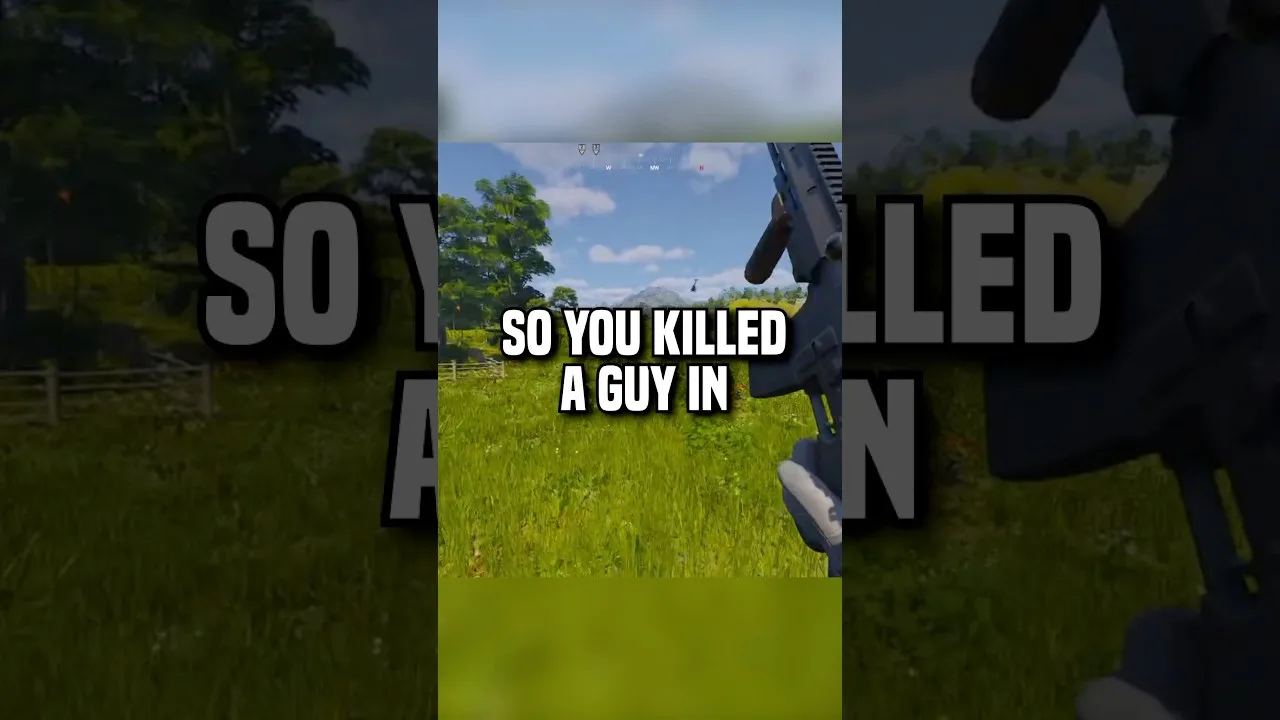
| Problem | What to check | Next action |
|---|---|---|
| Your friend isn't available for a squad invitation | Whether the in-game friend request was accepted | Open Requests and complete the friend connection |
| You can find your friend but cannot squad up | The factions of your selected characters | Select characters with matching factions |
| Your characters use different modes | Each character's PvE or PvEvP assignment | Select the matching mode-and-faction combination |
| Join Squad isn't available for a deployed friend | Whether the deployed player is squad leader | Transfer leadership to the player inside |
| Joining leaves you waiting in a queue | Available room for your faction | Wait, or regroup at the menu and deploy together |
| Squadmates enter different servers | Everyone's selected server region | Align the region before another group deployment |
Resolve Character Mismatches Before Repeating Invites
Start with faction and mode. Sending another invitation won't change either setting on the selected character.
Use the multiple-character system when your usual character doesn't match your friends. Check for an existing compatible character before creating another, particularly if you're already using all four slots.
Avoid deleting a developed character just to troubleshoot an invitation. The weekly deletion restriction makes that a poor first step when the actual issue could be squad leadership or an unaccepted request.
Keep the Group on One Server Region
If squadmates land in different servers, compare the region selected by every player. Match that setting before deploying again.
The Gray Zone Warfare invite friends checklist is straightforward: accepted friend request, accepted squad invitation, compatible characters, matching region, and the correct leader for an existing session. Work through those checks in order so you can identify the problem without changing unrelated settings.
Get Your Squad Ready for Rogue Ops
Once the Gray Zone Warfare invite friends setup is complete, decide what the group is doing before deployment. Update 0.5 adds activities that make mode selection and individual objectives worth discussing.
Choose Joint Operations or Warfare Together
Joint Operations is the PvE mode. Warfare is PvEvP.
Rogue Ops adds smuggling and hunting activities, with different opposition depending on the mode. In Warfare, smugglers and hunters have competing objectives that create player encounters. In Joint Operations, hunting involves regular AI enemies.
| Session detail | Joint Operations | Warfare |
|---|---|---|
| Game mode | PvE | PvEvP |
| Hunting activities | Fight regular AI enemies | Hunters and smugglers have opposing objectives |
| Character selection | Use a PvE character | Use a PvEvP character |
| Progression in Update 0.5 | Separate from PvEvP | Separate from PvE |
Choose the mode before deciding which character everyone should select. That keeps the group from forming around incompatible characters.
Prepare Before Accepting a Smuggling Contract
Smuggling contracts give you one hour to transport a shipment across Lamang. Gather the required resources and contraband before accepting.
After handing over the contraband, the vendor marks the pickup location for a smuggling backpack. You must deliver the shipment to the designated smuggling zone before time expires.
The contract fails if the smuggler dies, the timer runs out, or the backpack goes into another player's stash. The backpack is also visibly identifiable.
Plan the route and get your teammates ready before accepting the contract. In Warfare, account for hunters trying to intercept the shipment. Keep the contract's failure conditions in mind when organizing supplies and carrying the backpack.
Check Individual Tasks Before Leaving Base
Compare accepted tasks and required pickups before heading out. For collection objectives, have each squadmate gather their own mission item rather than assuming one person's pickup completes the task for everyone.
Review medical supplies, too. Update 0.5 handles treatment by body part, gives medical items more distinct purposes, and restricts some supplies to particular body parts. Read the health panel and item functions before heading into combat.
FAQ
What are the Gray Zone Warfare invite friends steps?
Add your friend through the in-game friends menu and have them accept the request. Select Create Squad, choose Add Member, open the menu beside their name, and select Invite to Squad. Wait for acceptance before deploying.
Can I play with friends in a different faction?
Your selected characters must belong to the same faction to form a squad. Update 0.5 lets you create up to four characters, so select or create one matching your friends' faction and game mode.
Can I join a friend who is already in a server?
Yes. Form a squad and make the deployed player the squad leader. From the main menu, use Join Squad. You can enter a queue if your faction's server capacity is full.
Do I need to wait for a wipe to fix a faction mismatch?
No. Update 0.5's multiple-character system lets you create a character with another faction-and-mode combination. You cannot keep duplicate combinations, and character deletion is limited to one per week.
Continue with
 Gray Zone Warfare PvE Guide: Modes, Progression & TipsExplore Gray Zone Warfare PvE in Rogue Ops 0.5, including Joint Operations, separate progression, Hideout crafting, healing, and practical survival tips.
More in Guides
Gray Zone Warfare Beginner Guide: Survive Rogue Ops
Use this Gray Zone Warfare beginner guide to prepare your loadout, handle injuries, build your Hideout, and survive Rogue Ops. Plan your next deployment.
Gray Zone Warfare Best Faction: Choose Your PMC in 0.5
Find the Gray Zone Warfare best faction for your squad in Update 0.5. Compare three PMCs, character limits, and mode choices before you deploy to Lamang.
Continue exploring
Gray Zone Warfare Discord: Find Squads and Get Help
Find your Gray Zone Warfare Discord community, plan squads by faction and mode, and get practical help with Rogue Ops crafting, tasks, and smuggling runs.
Gray Zone Warfare Hideout: Rooms, Crafting & Upgrades
Build your Gray Zone Warfare hideout with a guide to all three rooms, crafting, upgrades, and smuggling. Plan your loot runs and keep progression moving.
Join the community
Official channels for news, updates and player help: