Gray Zone Warfare Controller Support: PC Input Guide
Gray Zone Warfare controller support explained for PC: learn the native input limits, Steam mapping tradeoffs, and what Rogue Ops changes before you play.
Jump to
Does Gray Zone Warfare Have Controller Support?
Gray Zone Warfare controller support is a deal-breaker if a gamepad is how you play. The PC game does not have native controller support, which matters when you need dependable access to combat controls and menus. Gray Zone Warfare controller support through a Steam-based mapping setup is a workaround, with a different experience from built-in gamepad controls.
The distinction matters before you spend money or time arranging your setup. Moving around with a mapped controller does not give you native controller settings, Xbox button prompts, or a PlayStation interface.
Here is the current PC input situation:
| Input feature | Current support |
|---|---|
| Native controller support | No |
| Full controller support | No |
| In-game controller remapping | No |
| Dedicated controller sensitivity | No |
| Native Xbox/XInput controller support | No |
| Native PlayStation controller support | No |
| Xbox or PlayStation button prompts | No |
Keyboard and mouse remain the supported control method. Keyboard remapping, mouse sensitivity adjustment, and mouse Y-axis inversion are available, giving you some room to make that setup more comfortable.
Update 0.5, Rogue Ops, is now live. It adds substantial gameplay systems, including the Hideout and crafting, but native gamepad support remains absent from the current PC input feature set.
If you need a controller for accessibility, take that limitation seriously. A usable setup must cover the actions you personally need, including inventory and health management. Basic movement alone is too narrow a test for a tactical shooter with this much equipment handling.
Using Xbox or PlayStation Controllers on PC
For Gray Zone Warfare controller support, the controller’s brand does not resolve the underlying limitation. Xbox and PlayStation gamepads both lack native support in the PC game.
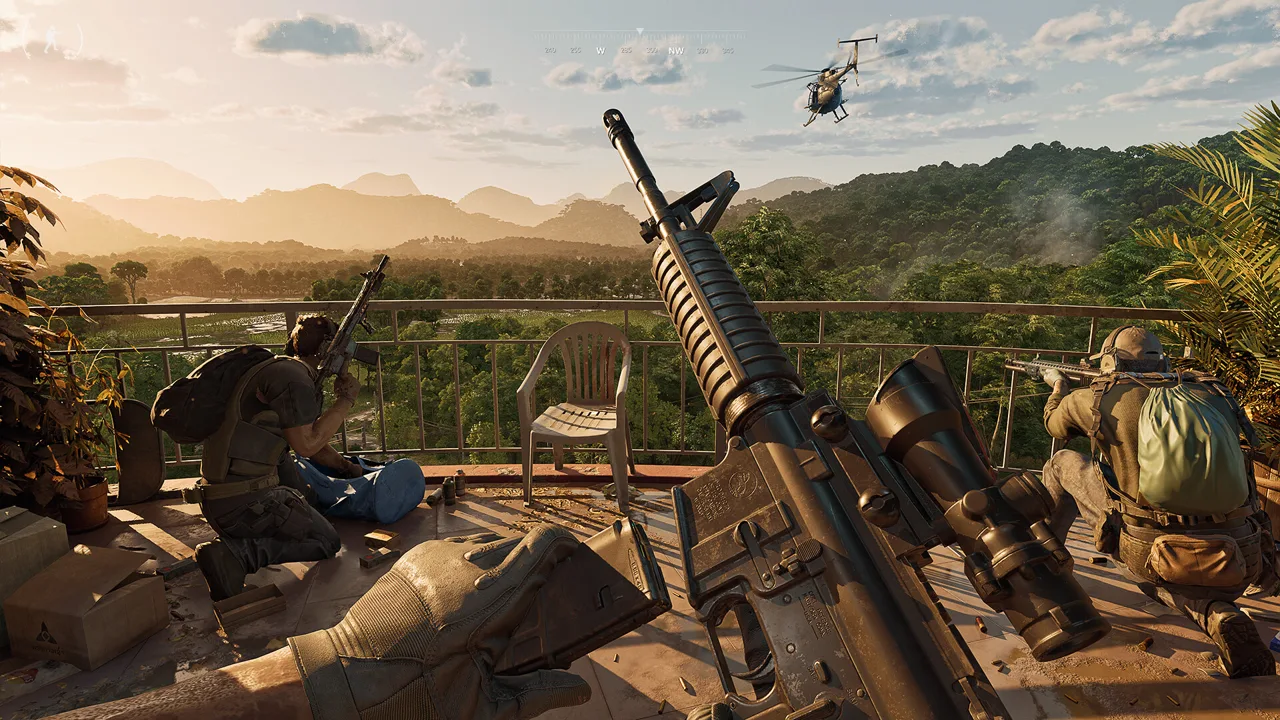 Image: Steam / MADFINGER Games, a.s.
There are also no native Xbox or PlayStation button prompts. You should not expect the interface to present an integrated gamepad control scheme simply because your controller connects to your computer.
The same applies to PlayStation-specific features. Native DualSense adaptive triggers and DualSense haptics are unsupported. Buying a different controller will not add those features to the game.
What Steam-Based Mapping Offers
A Steam-based controller setup has been used as a workaround. That gives existing controller owners something to explore, but it does not make the game fully controller compatible.
Keep the scope of that workaround clear. External mapping and in-game controller support are separate things. The game still lacks its own controller remapping and sensitivity options, so do not expect to tune a mapped setup through dedicated gamepad settings inside Gray Zone Warfare.
Before relying on a mapped layout, assess it against your actual needs:
- Check whether you can reach essential actions comfortably.
- Include inventory and health-panel interactions in your assessment.
- Consider whether switching to a mouse is practical for you.
- Decide whether the setup remains comfortable during equipment management.
For Gray Zone Warfare controller support, comfort includes more than aiming. A layout that makes movement manageable can still leave important interface tasks awkward.
If you already own the game, evaluate the workaround before committing to a lengthy session. If you are buying specifically for gamepad play, base that decision on the current absence of native support.
PC Input Settings You Can Actually Adjust
The supported PC controls offer several useful adjustments. Start with those if keyboard and mouse are an option for you, especially if your main difficulty is an uncomfortable control arrangement.
 Image: Steam / MADFINGER Games, a.s.
| PC input option | Availability | What it lets you adjust |
|---|---|---|
| Keyboard remapping | Supported | Keyboard action assignments |
| Mouse sensitivity | Supported | Mouse aiming and camera sensitivity |
| Mouse Y-axis inversion | Supported | Vertical mouse direction |
| Mouse menu control | Supported | Menu interaction using a mouse |
| Controller remapping | Unsupported | No dedicated in-game gamepad binding adjustment |
| Controller sensitivity | Unsupported | No dedicated in-game gamepad sensitivity adjustment |
Review keyboard assignments around the actions you use frequently. Keep essential controls within a comfortable reach, and check your revised layout against both combat and interface tasks.
Adjust mouse sensitivity deliberately. Evaluate how comfortable it feels when looking around and making smaller aiming corrections. There is no universal sensitivity value to copy here; choose a setting that fits your movement and comfort.
Use mouse Y-axis inversion if that matches your preferred vertical control direction. It is an available mouse option, separate from controller input.
Gray Zone Warfare controller support does not include an equivalent set of native gamepad adjustments. That means a controller sensitivity problem cannot be solved by looking for the game’s dedicated controller sensitivity slider.
Include Menus in Your Control Check
Because mouse menu interaction is supported, keep a mouse accessible if you intend to use it alongside a mapped controller setup.
Check the parts of the game that involve selecting and managing items. Opening an interface is only part of the task; you also need to carry out the actions inside it comfortably.
If reaching for a mouse defeats the purpose of your controller setup, include that in your buying decision. For players with accessibility needs, the entire interaction sequence matters.
What Rogue Ops Changes for Your Control Needs
Rogue Ops launched on October 22. Its new features give you more to manage across Lamang, from producing supplies to preparing smuggling shipments.
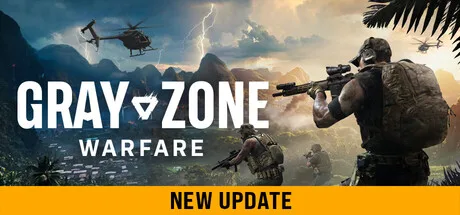 Image: Steam / MADFINGER Games, a.s.
These additions matter when considering Gray Zone Warfare controller support because they expand what you will ask your control setup to handle. Combat remains central, but the update also gives equipment, materials, and production a larger role.
| Rogue Ops feature | What you do |
|---|---|
| Hideout | Build and upgrade rooms with different functions |
| Laboratory | Produce specialized substances, including medical products |
| Electronics Workshop | Disassemble, modify, and assemble components |
| Crafting | Produce items after unlocking their recipes |
| Smuggling | Prepare contraband and transport a shipment |
| Health panel | Review injuries and select appropriate treatment |
The Hideout has three rooms: the Laboratory, Electronics Workshop, and Utility Room. Each has three upgrade levels. The Utility Room supplies power, while the other rooms support production and component work.
In the Electronics Workshop, crafting recipes must be unlocked before you can produce their corresponding items. Certain items can also be dismantled into components for crafting or tasks. Crafting is almost instantaneous, while production and disassembly take longer.
When assessing your controls, include these management activities. Make sure you can comfortably handle the interactions involved in preparing supplies and organizing your operation.
Healing Is Simpler, but Still Requires Attention
Update 0.5 streamlines treatment by applying it to a body part rather than each individual wound. That reduces repeated treatment in some situations, while preserving the need to choose appropriate medical supplies.
| Health situation or item | Update 0.5 behavior |
|---|---|
| Multiple broken bones in one leg | One splint treats the entire leg |
| Broken bones in both legs | Each leg needs its own splint |
| Tourniquet | Cannot be applied to the head or torso |
| Surgical kit | Can treat broken bones, organ damage, and bleeding |
| Blood bags and provisions | Use only the volume needed |
The improved health panel presents clearer injury and treatment information. Medical supplies also differ more in quality, specialization, and use.
Include selecting treatment and working with the health panel when evaluating your layout. A comfortable firing control does not tell you how manageable medical interactions will feel.
Prepare Before Accepting Smuggling Contracts
Smuggling introduces a specific reason to finish your control checks before starting an activity. You must gather the required resources and contraband before accepting a contract. After accepting, you have one hour to deliver the shipment.
The contract fails if you die, run out of time, or place the smuggling backpack in another player’s stash. The backpack is also visibly identifiable.
Finish adjusting your controls before taking on that commitment. Practice the interactions you need beforehand so the contract timer can stay focused on the delivery.
In Warfare, smuggling and hunting create opposing player objectives. In Joint Operations, hunting involves regular AI enemies. Choose your mode with those differences in mind, while keeping the same attention on reliable controls.
Decide Whether the Current Setup Fits You
Your decision about Gray Zone Warfare controller support should start with one practical question: can you comfortably use keyboard and mouse for the parts a mapped controller setup does not handle to your satisfaction?
If keyboard and mouse are comfortable, the game provides remapping and mouse adjustments to work with. Review those options before assuming you need a controller workaround.
If you prefer a gamepad but can use a mouse for interface tasks, evaluate that arrangement across combat, inventory, health, and Hideout management. Decide based on the complete sequence of actions you need.
If you require controller-only play, the current lack of native support is a substantial limitation. Do not make a purchase depend on a future update or an expectation of built-in Xbox and PlayStation controls.
Controller preference also does not have to be about aiming assistance. Comfort, familiar controls, and accessibility are valid reasons to want gamepad support. Focus on whether the available input options meet your needs.
Before buying, review the current version and purchase options on the Gray Zone Warfare Steam page. Keep your decision tied to the controls available today.
Gray Zone Warfare controller support currently centers on working around a keyboard-and-mouse interface. Judge that workaround by whether you can comfortably play the whole game, including the quieter preparation between firefights.
FAQ
Does Gray Zone Warfare controller support include native Xbox controls?
No. The current PC game lacks native Xbox/XInput controller support and Xbox button prompts. A Steam-based mapped setup is a separate workaround.
Can I use a PS5 DualSense controller with native features?
Gray Zone Warfare does not support native PlayStation controls, PlayStation button prompts, DualSense adaptive triggers, or DualSense haptics. Connecting a DualSense does not add those features.
Did Rogue Ops add full controller support?
No. Update 0.5 adds the Hideout, crafting, smuggling, and other gameplay changes, while the current PC input feature set still lacks native controller support.
Can I remap the keyboard and change mouse sensitivity?
Yes. Keyboard remapping, mouse sensitivity adjustment, mouse Y-axis inversion, and mouse menu interaction are supported. Dedicated controller remapping and controller sensitivity settings are unsupported.
Continue with
 Gray Zone Warfare Keeps Crashing? Fixes for Update 0.5Fix Gray Zone Warfare crashes with GPU crash dump fixes, driver settings, and shader cache checks. Change one thing at a time and test stability.
More in PC Support
See all PC Support
Continue exploring
Gray Zone Warfare Beginner Guide: Survive Rogue Ops
Use this Gray Zone Warfare beginner guide to prepare your loadout, handle injuries, build your Hideout, and survive Rogue Ops. Plan your next deployment.
Gray Zone Warfare PvE Guide: Modes, Progression & Tips
Explore Gray Zone Warfare PvE in Rogue Ops 0.5, including Joint Operations, separate progression, Hideout crafting, healing, and practical survival tips.
Join the community
Official channels for news, updates and player help: