Gray Zone Warfare Best Video Settings for FPS: 0.5 Guide
Gray Zone Warfare best video settings for fps, clearer targets, and smoother combat. Tune upscaling, shadows, and textures for the Rogue Ops 0.5 update.
Jump to
Best Video Settings for Higher FPS
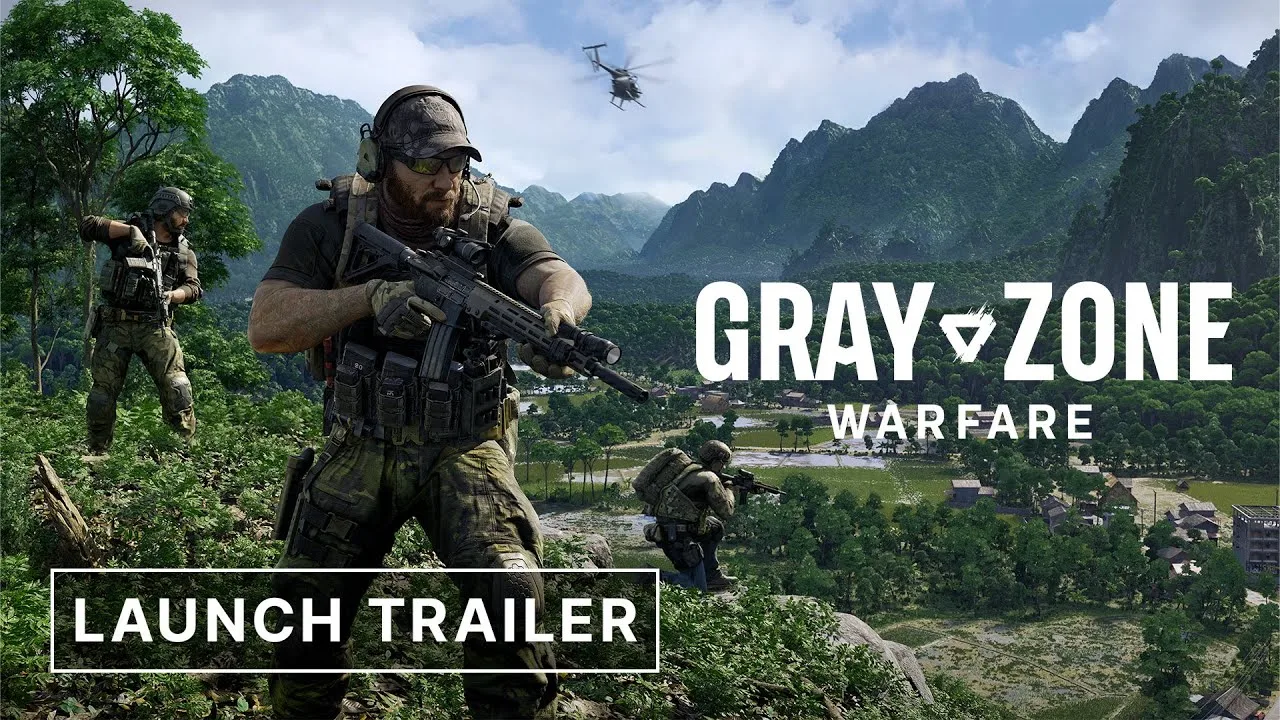
Keep distant enemies readable while you improve frame rate. The Gray Zone Warfare best video settings for fps start with low lighting, shadows, and effects, plus upscaling that preserves distant detail. Build your Gray Zone Warfare best video settings for fps setup around steady combat performance before enabling frame generation.
Start with the settings below, then increase individual options when your system has room. Keep image clarity in the equation: a higher frame counter loses its value when distant movement disappears into shimmering vegetation.
These values provide a performance-focused starting point. The exact upscaling and frame-generation options available depend on your graphics hardware.
| Setting | Recommended Value | Why It Helps |
|---|---|---|
| Window Mode | Fullscreen | Provides a straightforward baseline for comparing performance |
| Display Resolution | Native resolution initially; try 1920 × 1080 if needed | Reducing output resolution lowers rendering demand |
| VSync | Off initially | Use as a starting point for performance comparisons |
| Global Illumination | Low | Reduces lighting workload |
| Shadow Quality | Low | Cuts shadow-rendering cost |
| Texture Resolution | Medium initially | Preserves surface detail; adjust after comparing performance |
| Effects Quality | Low | Reduces the workload from combat effects |
| Reflections Quality | Low | Reduces reflection-related rendering demand |
| Foliage Quality | Low | Lowers the visual workload in vegetation-heavy environments |
| Post Processing | Low | Keeps additional visual processing restrained |
| Motion Blur | None | Keeps movement clearer when turning and scanning |
| Upscaling Quality | Quality initially | Preserves more detail than aggressive performance modes |
| Frame Generation | Off while tuning | Compare gameplay before adding frame generation |
Apply the low quality preset before adjusting textures and upscaling separately. Avoid moving every slider upward at once; you need to know which change affects the frame rate.
Leave brightness, contrast, saturation, and gamma at their defaults while establishing performance. Adjust visibility afterward, using both shaded interiors and bright outdoor areas. Washing out the picture makes it harder to judge whether your graphics changes actually improved readability.
Choose Upscaling and Frame Generation Separately
Upscaling options include DLSS, FSR, XeSS, and TSR. Compare their available quality modes while checking fine vegetation and distant silhouettes.
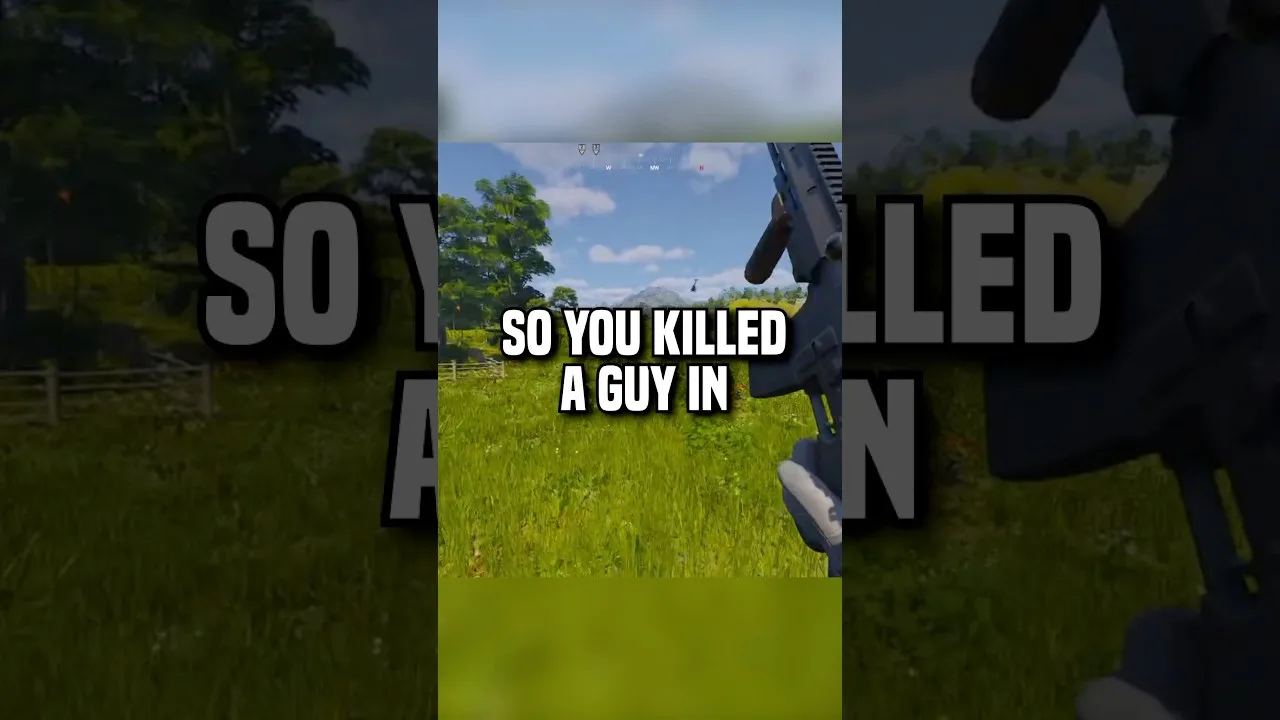
Try a supported frame-generation option to increase FPS. Compare the result during movement and aiming before keeping it enabled.
When tuning Gray Zone Warfare best video settings for fps, settle your upscaling choice before turning frame generation on. Compare each adjustment separately so you can judge its effect on gameplay.
| Option | Starting Adjustment | What to Examine |
|---|---|---|
| DLSS Super Resolution | Try Quality on compatible NVIDIA RTX hardware | Distant detail, foliage stability, and GPU performance |
| FSR Super Resolution | Start with Quality | Vegetation shimmer, moving silhouettes, and image softness |
| XeSS | Compare against other available upscalers | Fine detail and clarity while moving |
| TSR | Compare with the available alternatives | Image stability and rendering cost |
| Frame Generation | Enable after establishing your baseline | Motion smoothness, aiming response, and visual artifacts |
Start With Quality Upscaling
For Gray Zone Warfare best video settings for fps, use Quality before Balanced or Performance. Inspect distant objects closely as you move toward more aggressive performance modes.
At 1080p, pay particular attention to thin branches, fences, rooftops, and targets against busy backgrounds. Check the image while moving your view, because a still screenshot will not show every reconstruction problem.
If GPU performance remains insufficient, step down through the available upscaling modes. Keep the mode that improves performance without making target identification frustrating.
Add Frame Generation Afterward
Enable a supported frame-generation option once ordinary movement and aiming already feel usable. Compare the same scene with it enabled and disabled.
Watch for distracting changes around your weapon, moving objects, and interface elements. Keep your attention on control response as well as displayed smoothness.
Do not apply launch-era rules about pairing upscalers and frame generation to every later version. Gray Zone Warfare has expanded its graphics technology support since release. Use the combinations exposed by your current game version and hardware.
Keep Sharpening Restrained
Start sharpening low and increase it only when the image needs help.
Choose the upscaling mode first. Then adjust sharpening against a scene containing vegetation and distant structures, rather than trying to compensate for an overly aggressive performance mode.
Match the Settings to Your Hardware
The right preset depends on your GPU, CPU, memory, and output resolution. Use the following profiles to organize your adjustments, then compare them in actual gameplay.
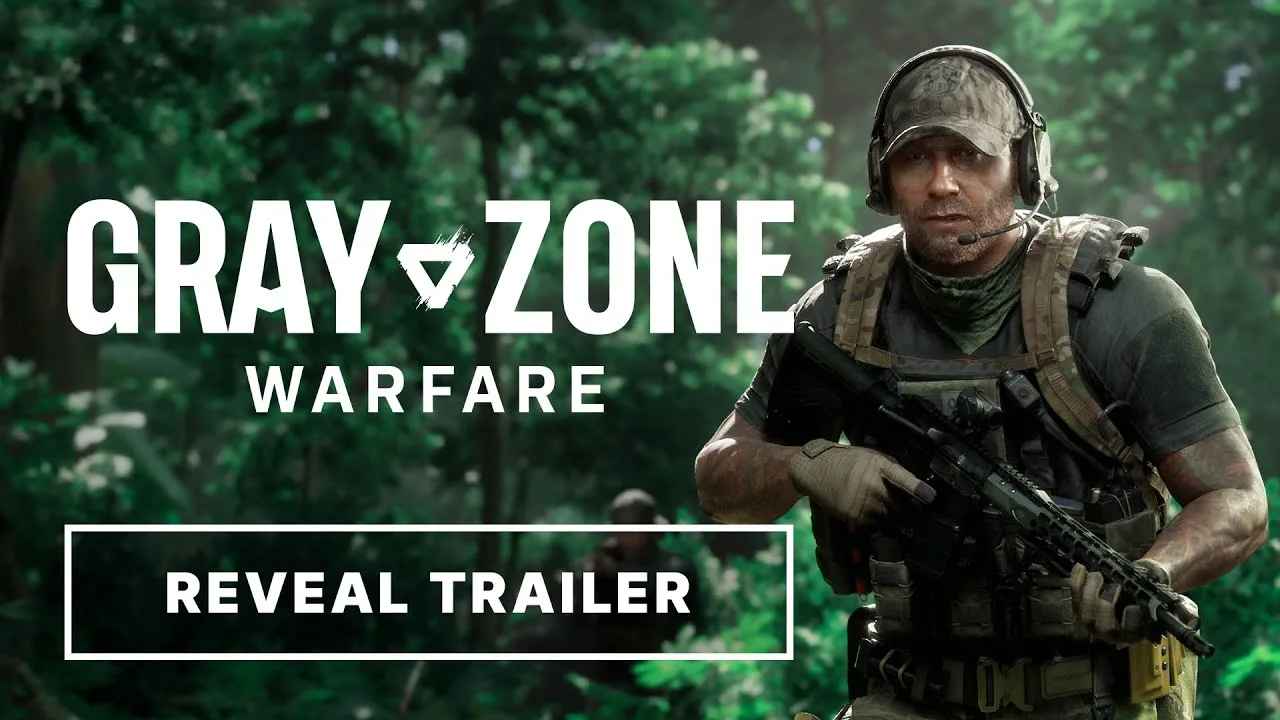
These Gray Zone Warfare best video settings for fps profiles prioritize motion blur removal across every hardware tier while scaling detail and resolution.
| Setting | Lower-End Hardware | Midrange Hardware | High-End Hardware |
|---|---|---|---|
| Output Resolution | 1080p | 1080p–1440p | 1440p–4K |
| Texture Quality | Low | Medium | High |
| Lighting | Low | Medium | High |
| Shadow Quality | Low | Medium | High |
| Effects Quality | Low | Medium | High |
| Draw Distance, where exposed | Low | Medium | High |
| Motion Blur | Off | Off | Off |
For lower-end hardware, begin with the low preset and Quality upscaling. Reduce the upscaling quality only if the GPU still struggles. Preserve enough clarity to distinguish movement through undergrowth.
For midrange hardware, raise textures before expensive lighting and reflection settings. Compare medium shadows with low shadows, especially if you rely on readable environmental shading.
For high-end hardware, begin at your intended resolution rather than immediately maximizing everything. Increase detail in stages and check performance during combat. A demanding location gives you a more useful comparison than a quiet view.
Treat VRAM as a Separate Constraint
Texture quality determines how detailed surfaces look. Avoid assuming that a particular VRAM capacity automatically makes high textures trouble-free.
If raising textures introduces stuttering, reduce them and repeat the same route. Keep your resolution and other graphics settings unchanged during that comparison.
Texture quality deserves attention because muddy surfaces can make the environment harder to read. Lower lighting and effects first when those adjustments recover enough performance to preserve useful texture detail.
Check the Rest of Your System
The current minimum requirements include 16 GB RAM, DirectX 12, an AVX2-capable processor, and an SSD. Recommended memory rises to 32 GB.
Minimum CPU examples include the Intel Core i5-8600 and AMD Ryzen 5 2600. Recommended examples include the Core i7-9700K and Ryzen 5 3600X.
Use the Gray Zone Warfare Steam page to review hardware requirements before buying or planning an upgrade. Graphics sliders cannot compensate for every system limitation.
What Update 0.5 Changes for Performance
Rogue Ops, Update 0.5, launched on October 22. It moves Gray Zone Warfare to Unreal Engine 5.7 and includes client and server optimizations.
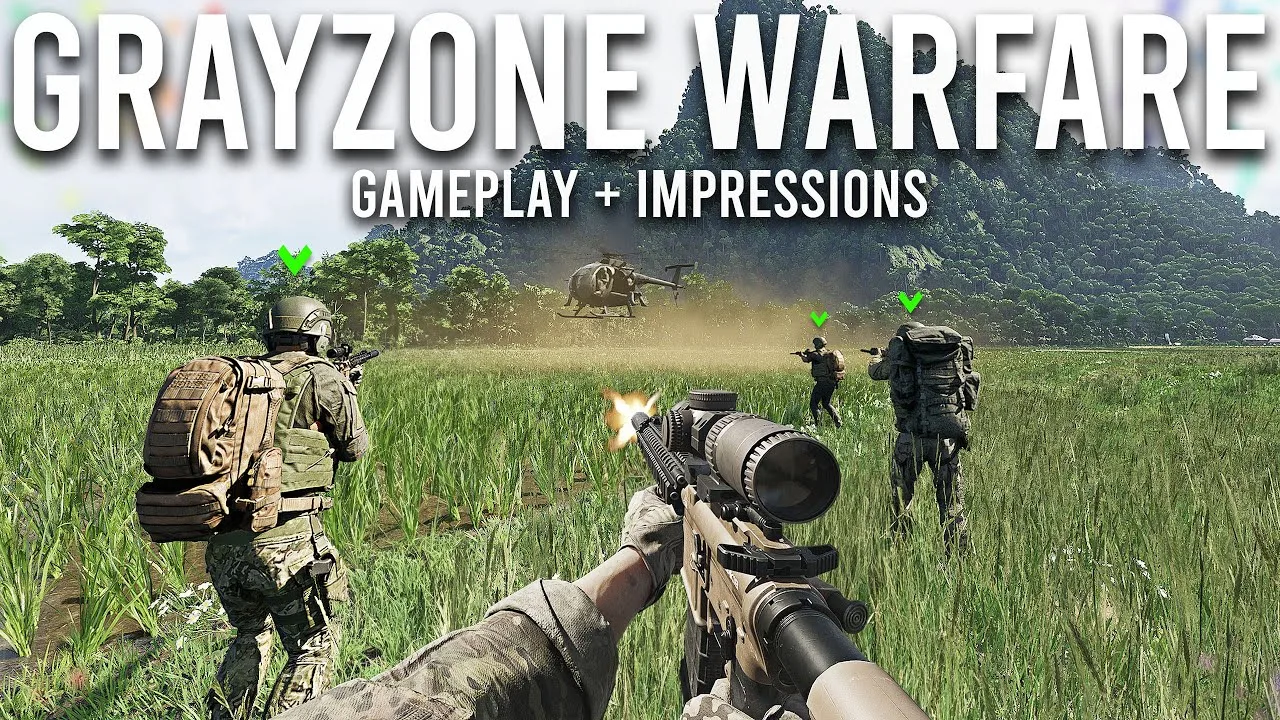
The update’s performance figures describe roughly 10% higher FPS overall, with these specific examples:
| Performance Measure | Update 0.4 | Update 0.5 |
|---|---|---|
| RX 6700 XT-class average combat FPS | 65 FPS | 75.4 FPS |
| RTX 3050 benchmark FPS | 53 FPS | 62 FPS |
| Hitches | More frequent and severe | Fewer and less severe |
Those figures describe particular benchmark runs. Use your own gameplay comparisons to choose a target for your system.
Update 0.5 also addresses memory leaks and performance issues affecting AMD RDNA 4 graphics cards. Overall RAM and VRAM consumption remains comparable to Update 0.4, so keep memory demands in mind when choosing textures.
Revisit your Gray Zone Warfare best video settings for fps after installing Rogue Ops. A preset chosen to work around an older performance problem deserves another comparison.
The update also changes lighting and clouds and introduces HDR display support. Calibrate HDR for visibility if you use it, and keep that adjustment separate from your performance testing. Recheck shaded areas and bright skies before committing to a new display setup.
Fix Low FPS, Stuttering, and Uneven Performance
Different symptoms need different adjustments. Separate graphics slowdowns, memory pressure, and network movement problems before changing the entire preset.
When the GPU Is Fully Loaded
Reduce rendering demand first:
- Lower reflections, global illumination, shadows, and effects.
- Move from Quality to a more aggressive upscaling mode if necessary.
- Reduce output resolution when the image-quality tradeoff is acceptable.
- Compare the same outdoor scene after each change.
If reducing resolution produces a clear improvement, continue tuning GPU-heavy options. Keep textures readable unless memory pressure gives you a reason to lower them.
When Lower Resolution Barely Helps
Check CPU load and temperatures. Reduce draw distance if your version exposes that setting, and compare the result.
Avoid repeatedly sacrificing resolution when the change produces little practical improvement.
Check temperatures during sustained play, too. Thermal throttling can reduce performance regardless of which preset you selected.
When the Game Stutters
Confirm that the game is installed on an SSD, which the current requirements specify. Check RAM and VRAM usage, then reduce texture quality if memory pressure accompanies the hitching.
Distinguish a brief frame-time spike from consistently low FPS. Raising the average while leaving severe hitches untouched will still feel uneven.
Build your Gray Zone Warfare best video settings for fps around consistent delivery. Compare frame-time behavior and low-FPS results alongside the average.
When Movement Rubber-Bands
Rubber-banding is a network or server-related symptom. Lowering reflections will not resolve server-side movement corrections.
Watch whether the camera remains smooth while characters or positions snap backward. Keep that behavior separate from graphics stutter when judging a settings change.
Measure With a Repeatable Comparison
Use a performance overlay or a frame-capture tool such as CapFrameX or NVIDIA FrameView. Compare the same route, viewing direction, and type of activity as closely as possible.
Record whether frame generation is enabled. Keep that setting unchanged while comparing other graphics adjustments.
Once performance is stable, set a frame-rate limit your system can sustain. Judge the final setup while turning, aiming, and fighting—the moments when smooth delivery matters.
FAQ
What Are the Gray Zone Warfare Best Video Settings for FPS?
Start with low global illumination, shadows, effects, reflections, foliage, and post processing. Disable motion blur, choose Quality upscaling, and leave frame generation off while establishing performance. Adjust textures separately for clarity and memory usage.
Should I Enable Frame Generation?
Try it after movement and aiming already feel responsive. Compare displayed smoothness, aiming response, and visual artifacts with the option enabled and disabled. Use the supported choices available to your hardware.
Is 1080p Better Than 1440p for Performance?
Lower output resolution reduces GPU rendering demand. Try 1080p when 1440p performance is insufficient, then inspect distant targets and vegetation. Compare Quality upscaling at your monitor’s native resolution before reducing output resolution.
Does Gray Zone Warfare Require an SSD?
Yes. The current minimum and recommended requirements both specify an SSD. They also list 16 GB RAM as the minimum and 32 GB as recommended, making storage and system memory important parts of your performance setup.
Continue with
 Gray Zone Warfare Controller Support: PC Input GuideGray Zone Warfare controller support explained for PC: learn the native input limits, Steam mapping tradeoffs, and what Rogue Ops changes before you play.
More in PC Support
See all PC Support
Continue exploring
Gray Zone Warfare Steam Charts: Rogue Ops Population
Track Gray Zone Warfare steam charts, compare player counts and peaks, and see how Rogue Ops changes the outlook for returning squads and new players.
Gray Zone Warfare Best Faction: Choose Your PMC in 0.5
Find the Gray Zone Warfare best faction for your squad in Update 0.5. Compare three PMCs, character limits, and mode choices before you deploy to Lamang.
Join the community
Official channels for news, updates and player help: