Gray Zone Warfare Keeps Crashing? Fixes for Update 0.5
Fix Gray Zone Warfare crashes with GPU crash dump fixes, driver settings, and shader cache checks. Change one thing at a time and test stability.
Jump to
What to Do When Gray Zone Warfare Keeps Crashing
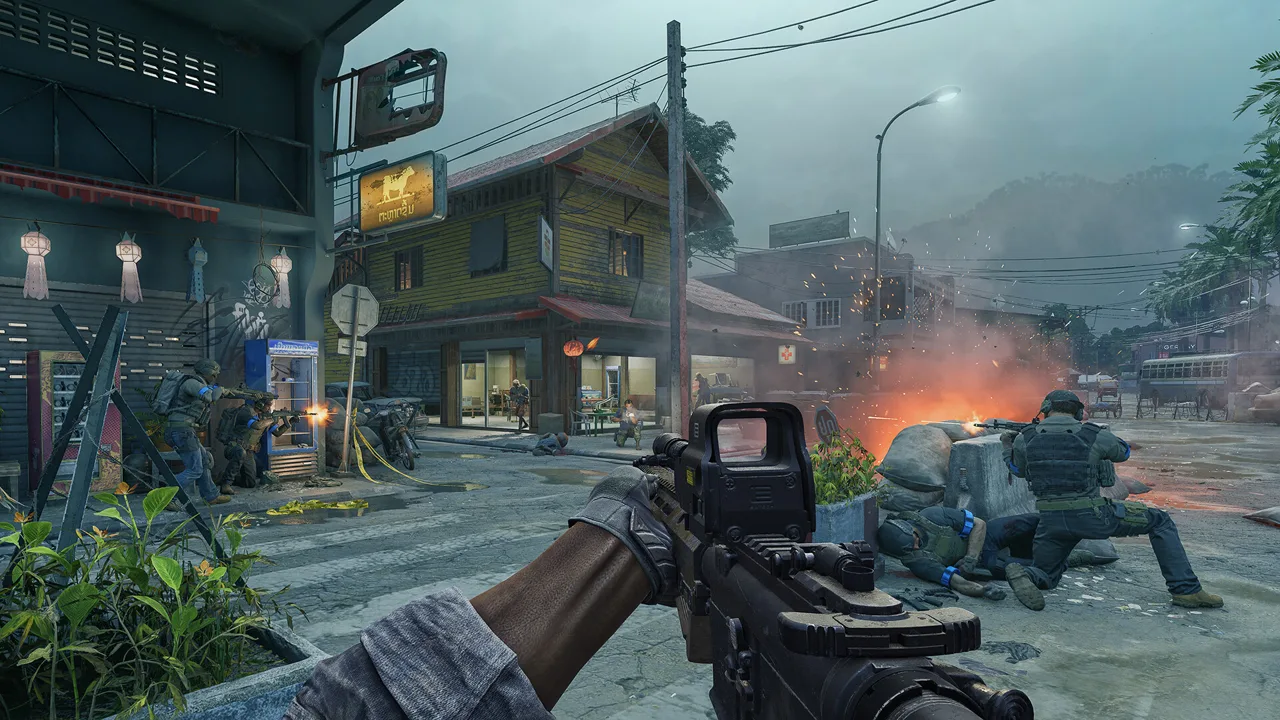
If Gray Zone Warfare keeps crashing, start by verifying your Steam files, updating Windows and your graphics driver, and matching the next fix to your crash symptoms. Repeated crashes interrupt deployments and make it difficult to finish a session. When Gray Zone Warfare keeps crashing with a GPU error, focus on GPU scheduling, driver settings, and shader caches; a silent return to desktop has a separate configuration-reset procedure.
Change one thing at a time and test before moving on. That keeps troubleshooting manageable and helps you identify which adjustment actually improves stability.
Start with hardware and updates
Check your PC against these requirements before changing graphics settings:
| Component | Minimum requirement | Recommended requirement |
|---|---|---|
| Operating system | Windows 10, 64-bit, latest update | Windows 10 or Windows 11, 64-bit, latest update |
| Processor | Intel Core i5-8600 or AMD Ryzen 5 2600; AVX2 required | Intel Core i7-9700K or AMD Ryzen 5 3600X |
| System memory | 16 GB RAM | 32 GB RAM |
| Graphics examples | GTX 1080 8GB, RTX 3060 8GB, or RX 6600 8GB | RTX 2080 Ti 11GB, RTX 4070 12GB, or RX 6800 XT 16GB |
| DirectX | Version 12 | Version 12 |
| Storage | 40 GB available; SSD required | 40 GB available; SSD required |
| Connection | Broadband internet | Broadband internet |
The graphics cards above are examples from the supported hardware requirements. Check the exact model and memory capacity of your card rather than comparing the series name alone.
Install pending Windows updates and obtain graphics drivers directly from NVIDIA, AMD, or Intel. Then verify the game:
- Open your Steam Library.
- Right-click Gray Zone Warfare and select Properties.
- Open Installed Files.
- Select Verify integrity of game files.
Update 0.5: Rogue Ops includes fixes for client crashes, server crashes, and memory leaks, alongside an upgrade to Unreal Engine 5.7. Install available game updates before troubleshooting an older build. Those improvements do not eliminate the need to investigate a recurring crash on your machine.
Match the fix to the symptom
| What happens | Troubleshooting path |
|---|---|
| Game closes to desktop without an error or crash log | Reset WindowsClient settings, clear Steam’s download cache, and verify files |
| UE-GZW Crash Reporter displays “GPU Crash Dump” | Test GPU scheduling, restore driver settings, and clear shader caches |
| Crash Reporter displays “EXCEPTION_ACCESS_VIOLATION” | Work through the GPU troubleshooting steps and close unnecessary background applications |
| Crashes continue after basic checks | Reinstall the game or escalate with crash information |
Write down the exact error before changing anything. “GPU Crash Dump” and a silent desktop exit lead you toward different troubleshooting steps.
Official page: Gray Zone Warfare (grayzonewarfare.com)
Fix Crashes to Desktop Without an Error
If Gray Zone Warfare keeps crashing without displaying a message, reset its local graphics and control configuration.
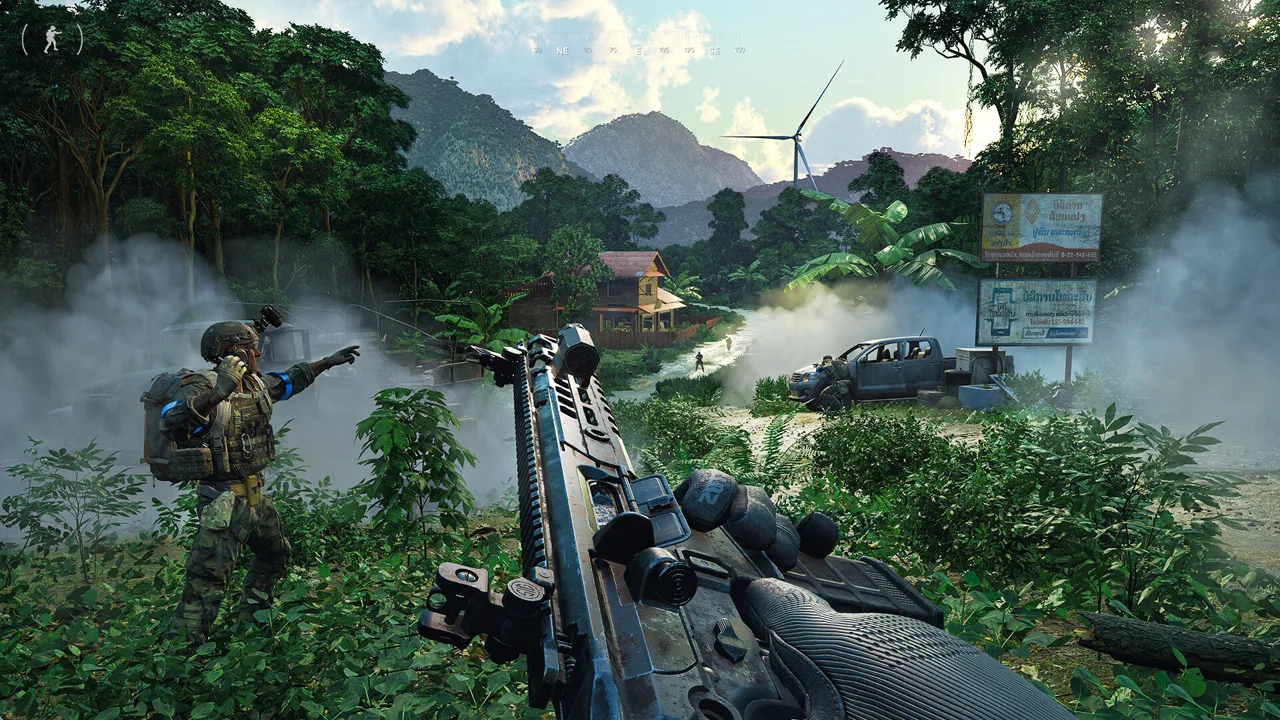 Image: Steam / MADFINGER Games, a.s.
The WindowsClient reset clears your in-game settings, including graphics options and keybindings. Record any custom controls before proceeding so you can restore them afterward.
Reset WindowsClient and Steam’s download cache
Close the game before working with its configuration folder. Back up the WindowsClient folder, then remove the original to reset those settings. Keep the backup separate from the active configuration.
Next, clear Steam’s download cache:
- Open the Steam menu.
- Select Settings.
- Open Downloads.
- Find Clear Download Cache and select Clear Cache.
After the reset, launch the game and select the lowest available graphics preset. Reconfigure your controls in the Control tab of the in-game Settings menu.
Increase graphics settings gradually as your hardware permits. If you immediately restore every previous option, you lose the opportunity to test the reset with a simpler configuration.
Verify again before reinstalling
Run Steam’s file verification after completing the configuration reset. This checks the installation separately from the settings you just cleared.
If the silent desktop crashes continue, move on to reinstalling the graphics driver. Reinstalling the game is another basic troubleshooting option, but complete file verification first.
When Gray Zone Warfare keeps crashing, distinguish between the changes you have tried: resetting preferences, checking installed files, and replacing drivers each address a different part of the setup. Keep a short checklist instead of repeating the same step without tracking its result.
Address GPU Crash Dump and EXCEPTION_ACCESS_VIOLATION
A GPU crash message gives you a more focused troubleshooting path. Start with hardware-accelerated GPU scheduling, then restore driver settings and reduce background software.
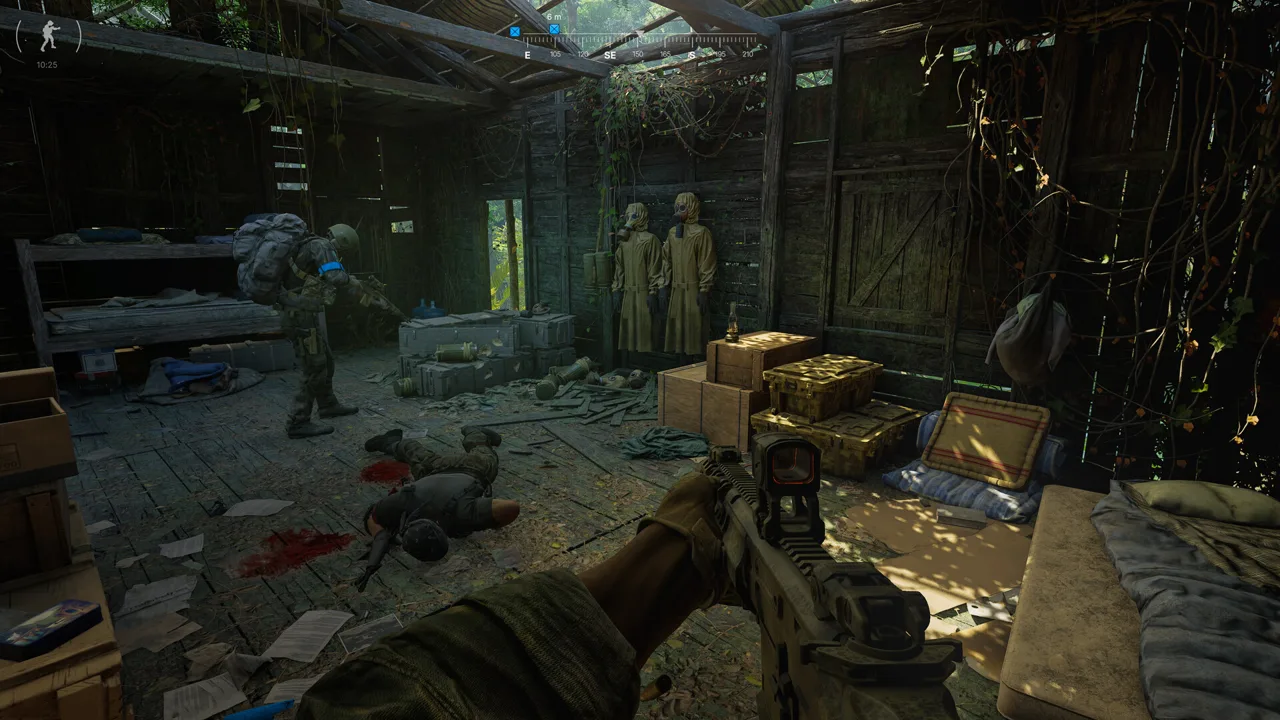 Image: Steam / MADFINGER Games, a.s.
Test hardware-accelerated GPU scheduling
Hardware-accelerated GPU scheduling, often shortened to HAGS, is a Windows graphics setting. Use your current anti-aliasing or upscaling method to choose the initial test:
| In-game method | HAGS setting to try |
|---|---|
| FSR | Off |
| TSR | Off |
| XeSS | Off |
| DLSS | On |
To find the option:
- Open Windows Settings.
- Go to System, then Display.
- Open Graphics.
- Select Change default graphics settings.
- Change Hardware-accelerated GPU scheduling.
- Restart your PC before testing again.
Avoid applying the old blanket advice to disable HAGS on every system. The troubleshooting settings distinguish DLSS from FSR, TSR, and XeSS.
If Gray Zone Warfare keeps crashing after this change, continue with driver settings rather than repeatedly switching HAGS without a clear test.
Restore NVIDIA or AMD settings
For NVIDIA App users:
- Open Graphics, then Global Settings.
- Find Driver Settings, select Restore, and confirm.
- Open Program Settings and select Gray Zone Warfare.
- Open the three-dot menu beside Driver Settings.
- Select Restore and confirm again.
This procedure resets both global driver options and the game’s individual profile. Record custom settings beforehand, particularly if you use global overrides for other games.
For AMD Adrenalin users, open Settings, locate Factory Reset, select Perform Reset, and confirm with Proceed.
Test the game after restoring settings, before adding custom driver overrides again.
Close recording and peripheral software
Exit unnecessary background applications before launching. Include peripheral utilities such as Razer Synapse, Logitech G Hub, Corsair iCUE, MSI Dragon Center, and ASUS Armory Crate in this test.
Also turn off active screen sharing, streaming, and clip recording. Check Discord screen sharing, Steam recording, and NVIDIA or AMD Instant Replay features.
Keep these applications closed during the test session. Reintroduce them individually after stability improves so you can check whether a particular program brings the problem back.
Clear Shader Caches and Test a Lower Frame Limit
If Gray Zone Warfare keeps crashing with a GPU error after the scheduling and driver-profile checks, clear the shader caches next.
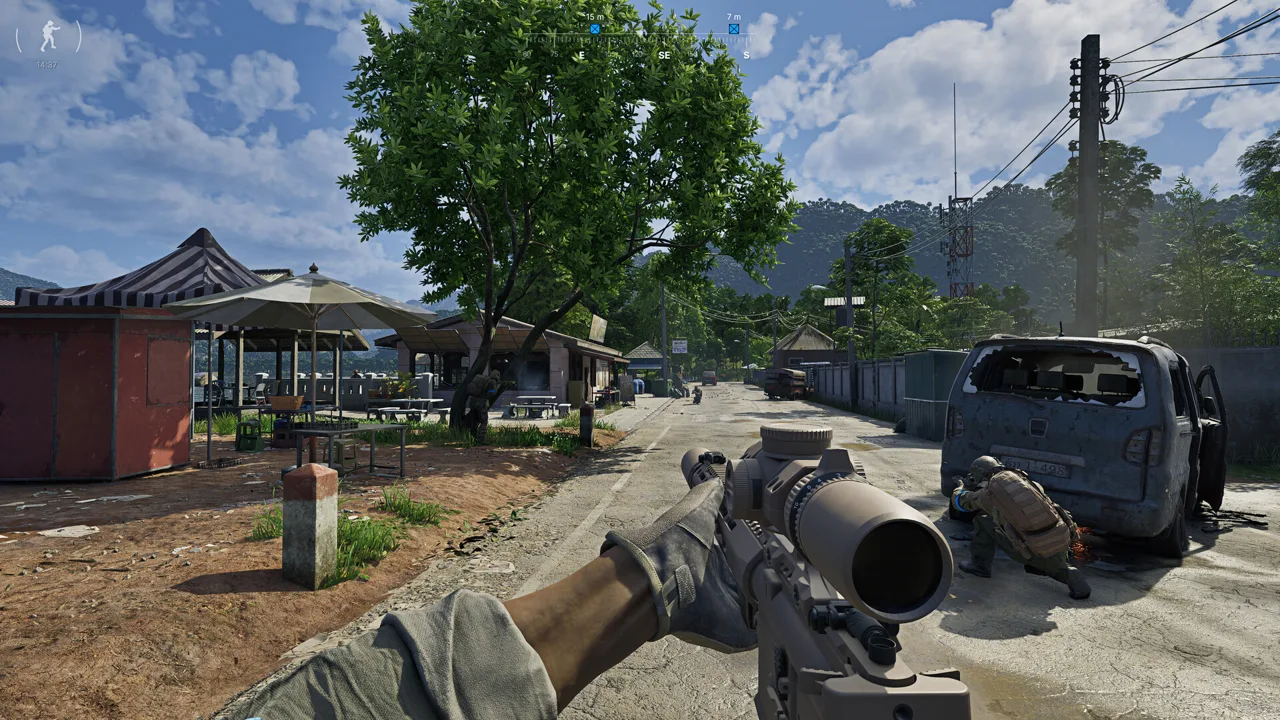 Image: Steam / MADFINGER Games, a.s.
There are separate game, graphics-driver, and DirectX cache steps. Work through the relevant ones with the game closed.
| Cache item | Action |
|---|---|
| Game shader-loader file | In the game’s GZW/Saved/ directory, remove ShaderLoader.txt |
| NVIDIA shader cache | In NVIDIA App, open Graphics → Global Settings → Shader Cache, then choose Clear Cache |
| AMD shader cache | In Adrenalin, open Gaming → Graphics → Reset Shader Cache, then choose Perform Reset |
| DirectX shader cache | In Windows’ drive-cleanup options, select the system drive and remove DirectX Shader Cache |
For NVIDIA, open the Shader Cache editing controls and use the three-dot menu to reach Clear Cache. Confirm the operation, then keep the cache size at Driver Default. A 100 GB setting is another option if your C: drive has enough spare space.
In AMD Adrenalin, Reset Shader Cache can appear inside an Advanced section. Expand that section if needed, then confirm the reset.
For the DirectX cleanup, select your system drive, check DirectX Shader Cache, and confirm the removal. Keep the cleanup selection focused on the cache you intend to clear.
Try a 60 FPS cap
Set the in-game frame limit to 60 FPS as a troubleshooting test. This adjustment helped some setups during the game’s 2024 release period, although crashes persisted on others.
Use the cap as a setting to test alongside the GPU troubleshooting steps. Keep it in place while checking stability, then increase it gradually if sessions remain stable.
Also begin with the lowest graphics preset after a configuration reset. Raise settings individually instead of combining a higher frame limit with several graphics changes in the same test.
These adjustments make the results easier to interpret. If the crash returns after a particular change, restore the previous setting and test again before moving further.
Reinstall Drivers or Send a Useful Crash Report
When Gray Zone Warfare keeps crashing after the earlier steps, move to a graphics-driver reinstall and collect the information needed for further troubleshooting.
Reinstall the graphics driver
Download the appropriate driver from your GPU manufacturer before removing the installed version.
For a deeper cleanup, the troubleshooting procedure includes Display Driver Uninstaller, or DDU, followed by installing the downloaded driver. Follow DDU’s instructions carefully rather than improvising the removal process.
If you are experiencing problems specifically with the newest NVIDIA drivers, version 610.62 is a rollback option. Use that as a targeted test for a driver-related problem rather than an automatic replacement for every NVIDIA installation.
Test again before restoring custom driver profiles or enabling recording features.
Reinstall the game if necessary
Reinstalling Gray Zone Warfare remains an option after verification and the more focused fixes. Keep track of whether the crash changes afterward: the error text, the point at which it occurs, and whether the same action triggers it are useful details.
Avoid treating a single successful launch as the end of troubleshooting. Test the part of play that previously caused the crash.
Capture useful crash information
When the crash-report prompt appears, allow the crash information to be forwarded to MADFINGER Games.
For recurring GPU crashes, enable the GPU crash-debugging tool in the graphics settings. It collects more detailed crash data and can affect performance, so reserve it for investigating regular GPU crashes.
Include these details when contacting Customer Care:
- The exact error message.
- Your CPU, GPU, RAM, and graphics-driver version.
- Whether the crash occurs during launch, deployment, or gameplay.
- Your anti-aliasing method and HAGS setting.
- Which troubleshooting steps you have completed.
Specific details give support a clearer picture than “the game crashes randomly” and help prevent another round of identical basic checks.
FAQ
Why does Gray Zone Warfare keep crashing after Update 0.5?
Update 0.5 fixes multiple client and server crashes and memory leaks. Persistent crashes still require checking installation files, graphics drivers, local settings, GPU scheduling, and shader caches. Start with the procedure that matches your error.
Should I turn hardware-accelerated GPU scheduling on or off?
Try HAGS off with FSR, TSR, or XeSS, and on with DLSS. Restart your PC after changing the setting, then test before adjusting anything else.
What should I try if Gray Zone Warfare keeps crashing without an error?
Reset the WindowsClient configuration folder, clear Steam’s download cache, and verify game files. The configuration reset removes graphics settings and keybindings, so record your preferences beforehand.
Does limiting Gray Zone Warfare to 60 FPS stop GPU crashes?
A 60 FPS limit helped some setups during the 2024 release period. Try it as a stability test while working through scheduling, driver settings, and shader-cache cleanup; it is not a guaranteed fix.
Continue with
 Gray Zone Warfare Best Video Settings for FPS: 0.5 GuideGray Zone Warfare best video settings for fps, clearer targets, and smoother combat. Tune upscaling, shadows, and textures for the Rogue Ops 0.5 update.
More in PC Support
See all PC Support
Continue exploring
Join the community
Official channels for news, updates and player help: